AI Assistant
Ask about this workspace’s lists and revenue in Arabic or English. It does not create invoices or manage team.
-
Step 1
Check plan and credits
The plan must include AI agent. Unused credits do not roll over to next month.
Screenshots show the English workspace UI.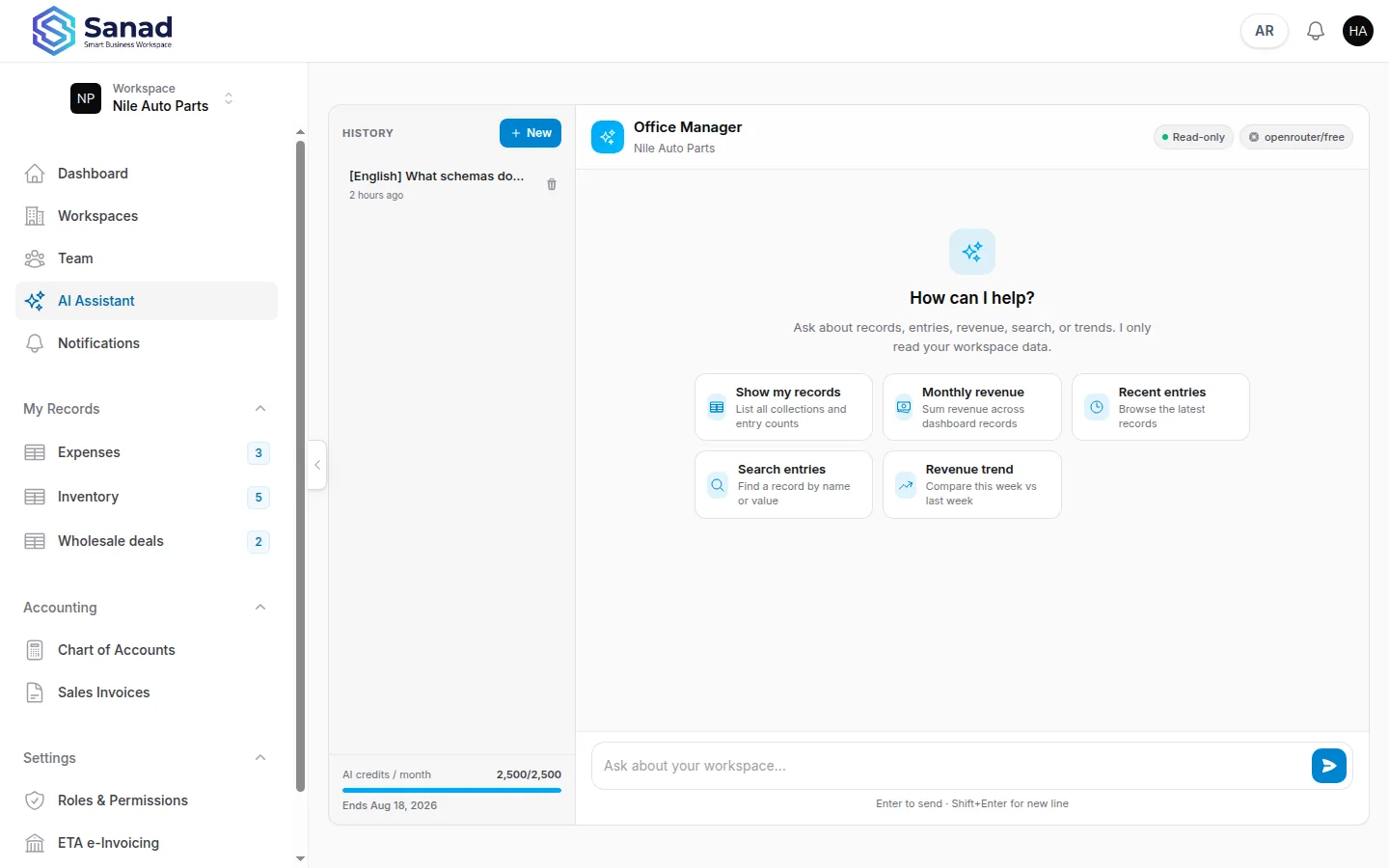
-
Step 2
Open AI Assistant
It only sees the current workspace. It answers in the same language you type.
Screenshots show the English workspace UI.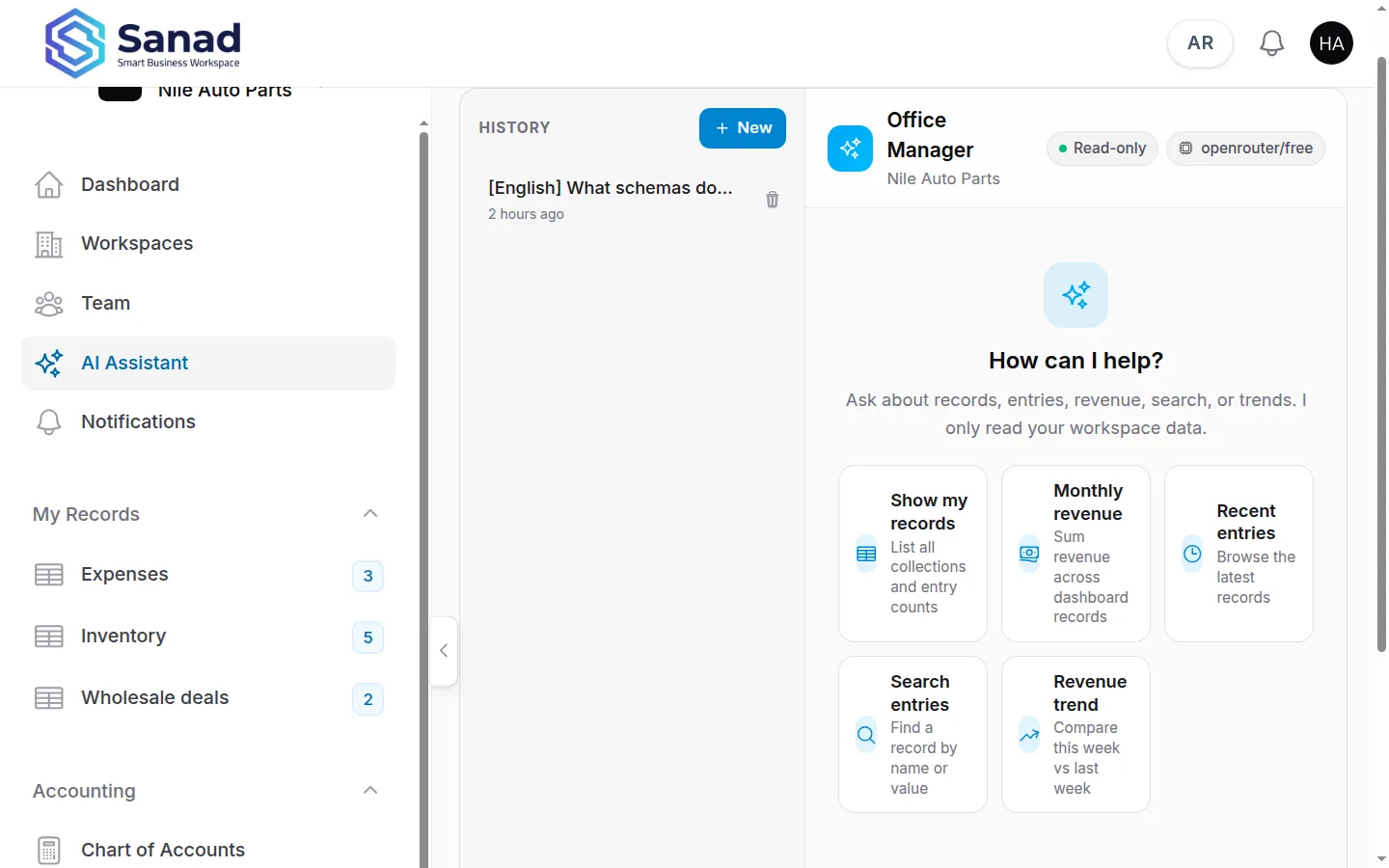
-
Step 3
Use a suggestion or type a question
Starter chips: Show my records, Monthly revenue, Recent entries, Search entries, Revenue trend. Click one or type your own question. Replies can include tables or charts.
Screenshots show the English workspace UI.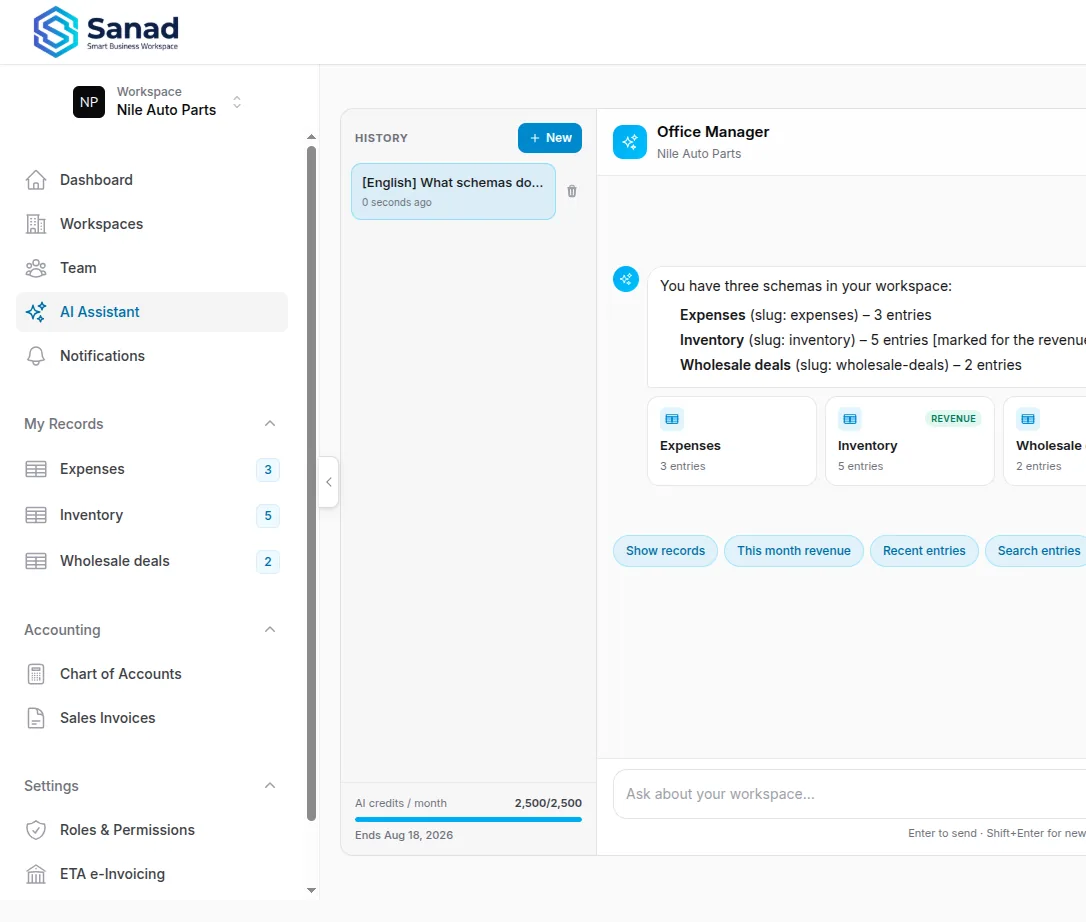
-
Step 4
Continue the chat
Follow-up questions stay in the same conversation. The sidebar holds past chats. Watch the AI credits / month meter.
Screenshots show the English workspace UI.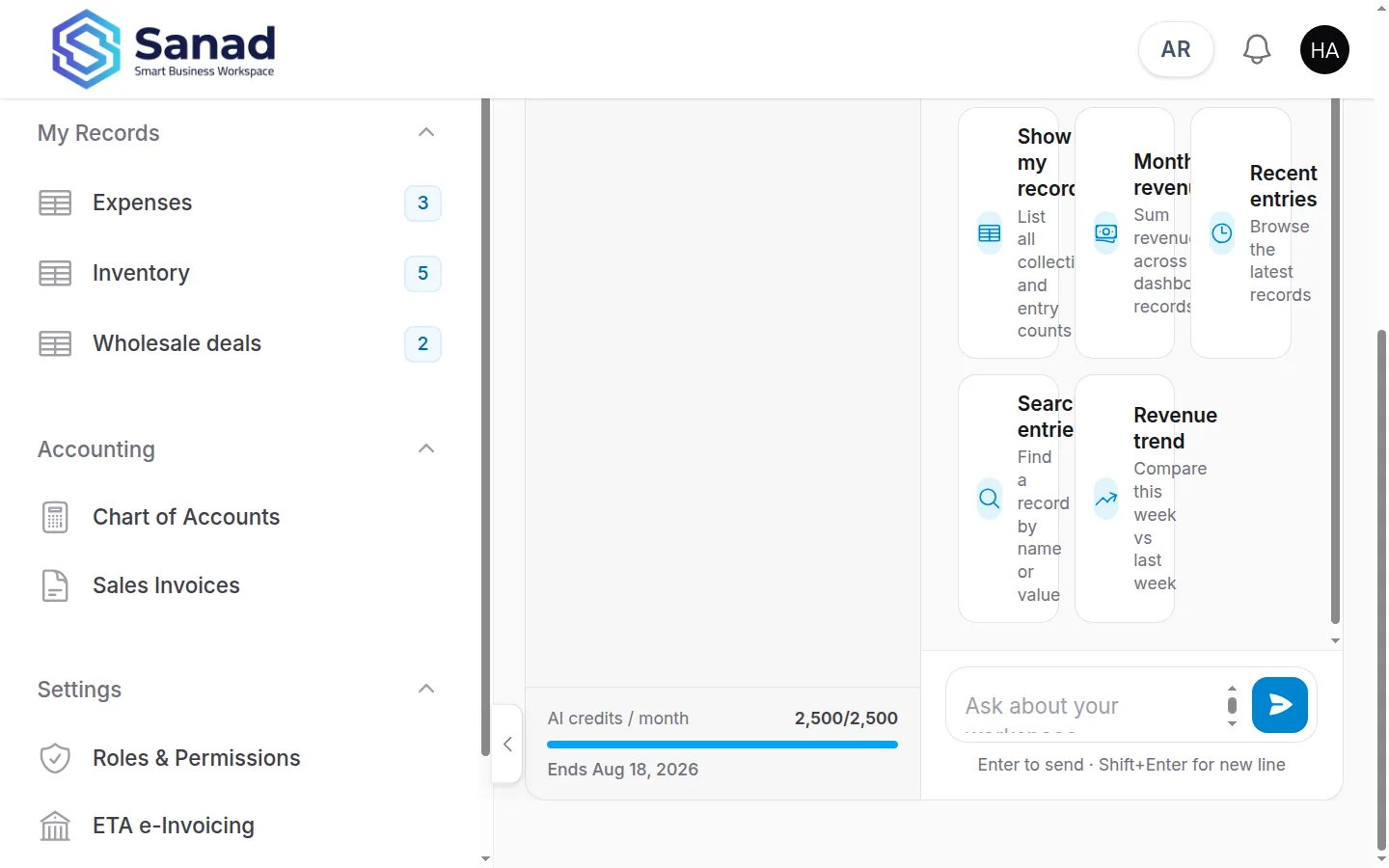
-
Step 5
What it will not do
It will not create or send invoices, talk to ETA, change Chart of Accounts, team, or roles, see another workspace, or invent numbers. Lists not on the revenue dashboard are not in the revenue total.
Screenshots show the English workspace UI.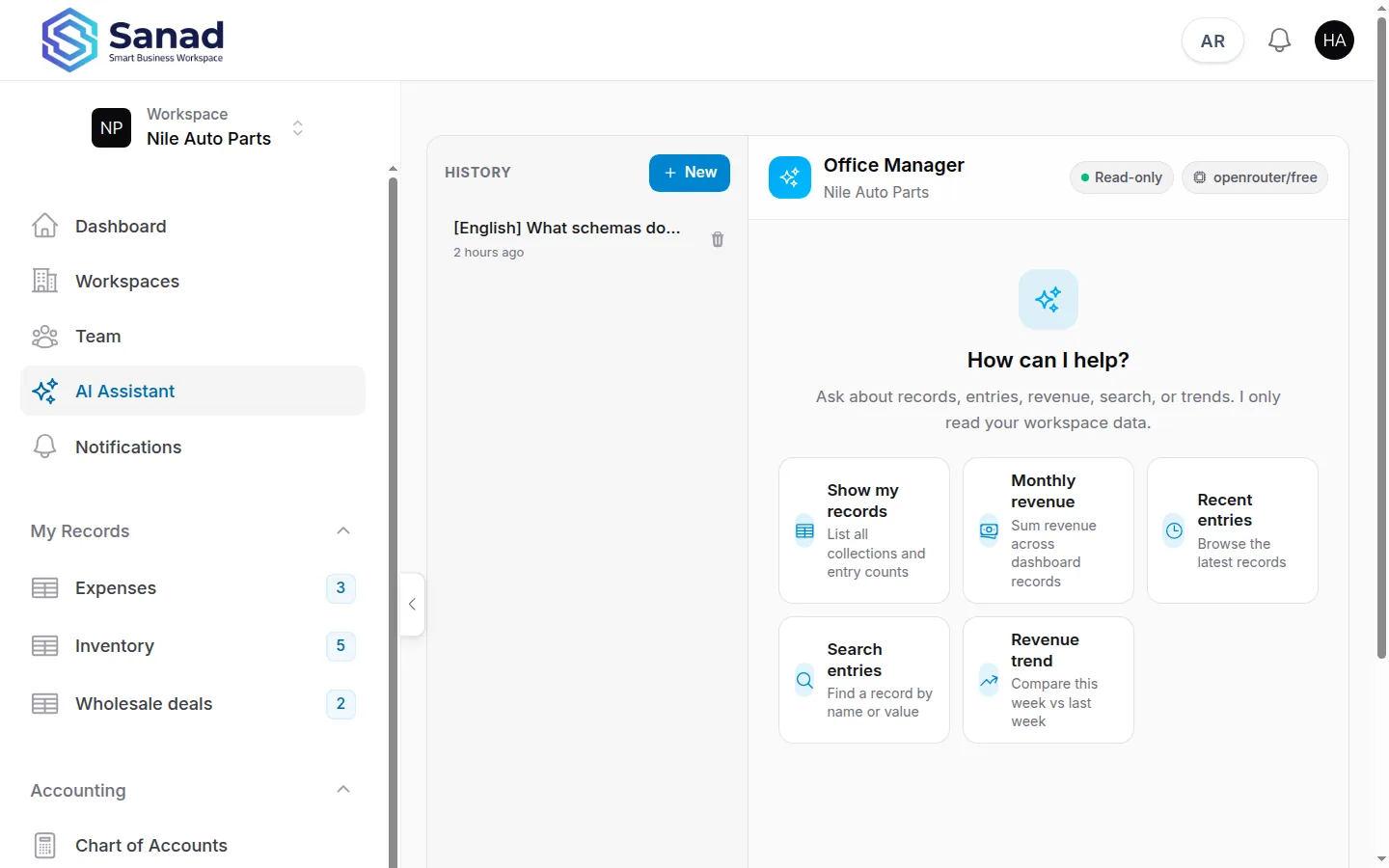
Related articles
Home dashboard and revenue
See KPIs, charts, and plan usage on home for lists with Include in revenue dashboard turned on.
Add and manage entries
Open a list under Records, add or edit rows, import Excel, filter the table, and download a barcode label when the list has a barcode field.
Plans and billing
What each plan unlocks, how to request a change, and what Pending payment means.