Sales returns
Return part or all of a posted invoice: proportional refund, remaining qty tracking, and stock restore for scanned items.
-
Step 1
Open Sales Returns
Sales → Sales Returns lists every return with Return #, Invoice, Buyer, Refund, By, and Created. Create (top-right) starts a new return.
Screenshots show the English workspace UI.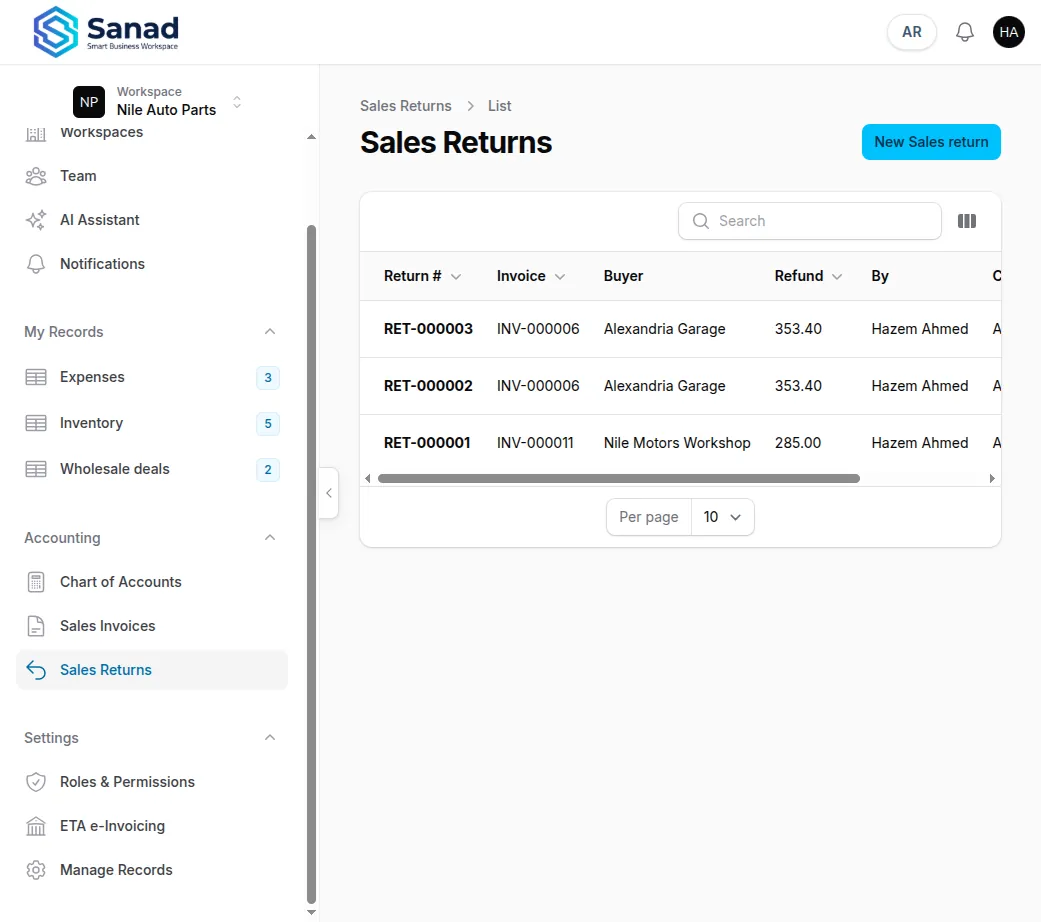
-
Step 2
Pick the invoice and reason
Original invoice is searchable and shows posted invoices only. Return reason is required.
Screenshots show the English workspace UI.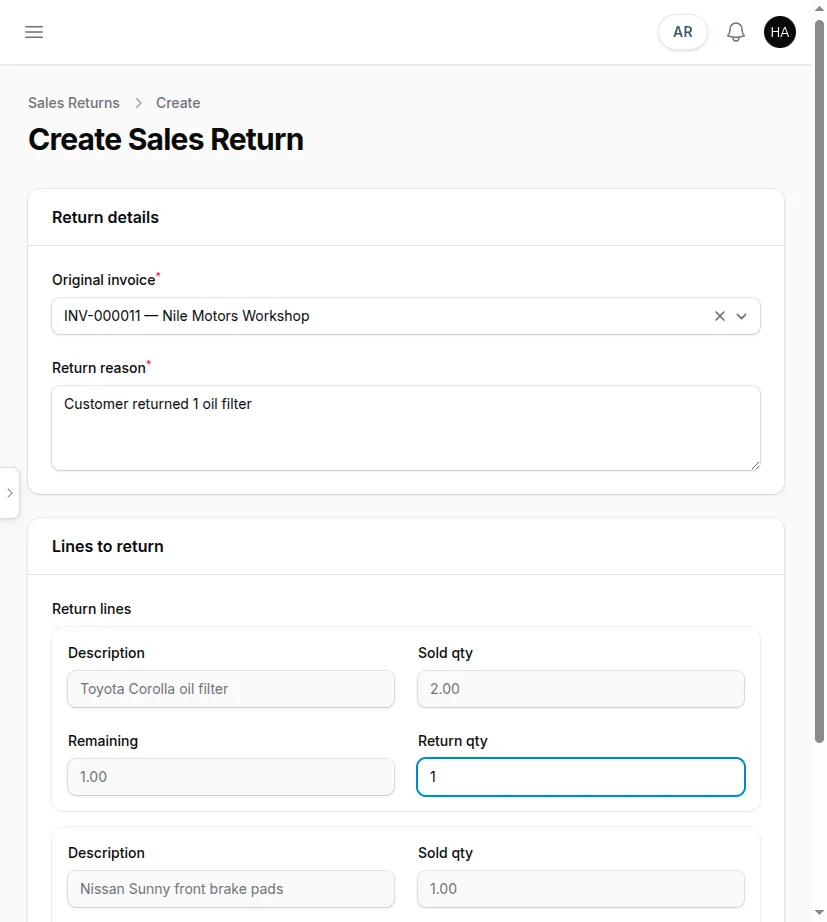
-
Step 3
Set return quantities
Each line shows Sold qty, Remaining, and Return qty. Return qty defaults to 0 — fill only the lines you are returning. Partial returns are allowed (Return qty must not exceed Remaining). Refund net, tax, and total are proportional to the original line, including any Discount on that line. Scanned inventory lines restore stock on save.
Screenshots show the English workspace UI.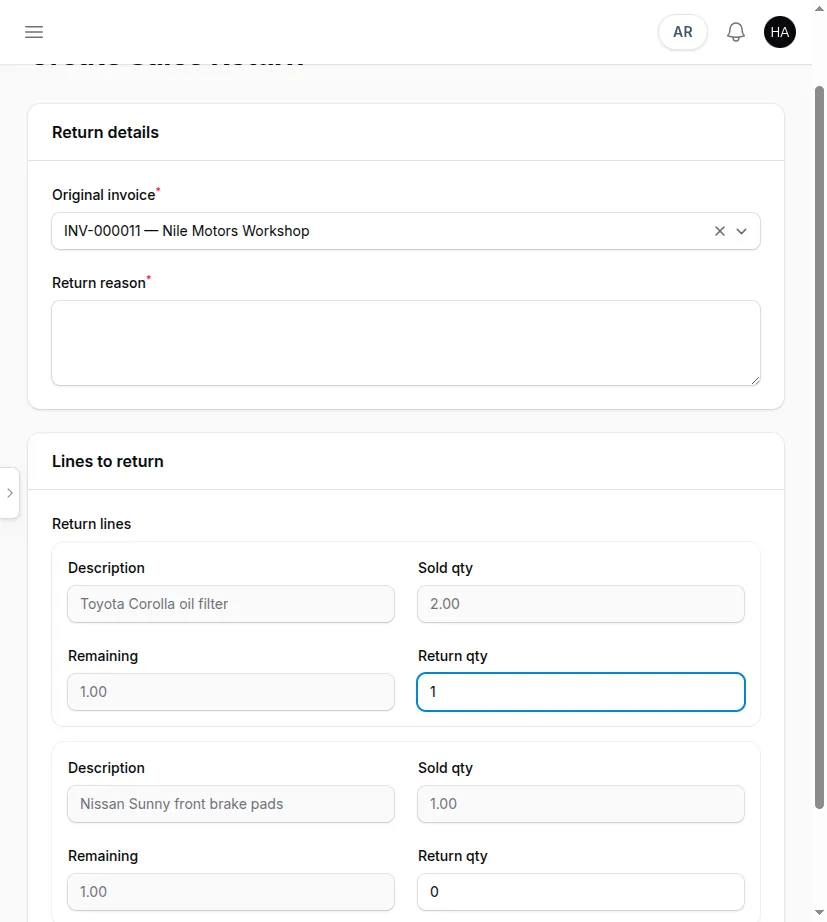
-
Step 4
View the return
Save assigns a Return number (RET-…). The view shows Refund net, Refund tax, Refund total, Reason, and Returned lines.
Screenshots show the English workspace UI.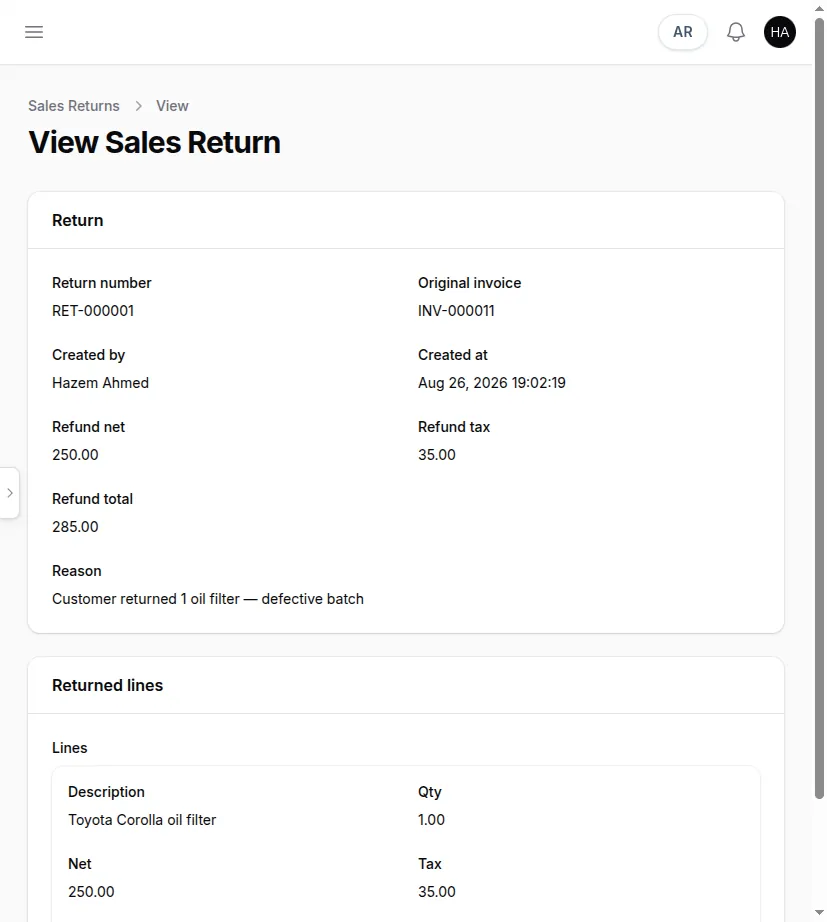
-
Step 5
See returns on the invoice
Open the original invoice. The Sales returns card lists each Return # (clickable), Created, By, Refund, and Reason. Empty state: No sales returns yet.
Screenshots show the English workspace UI.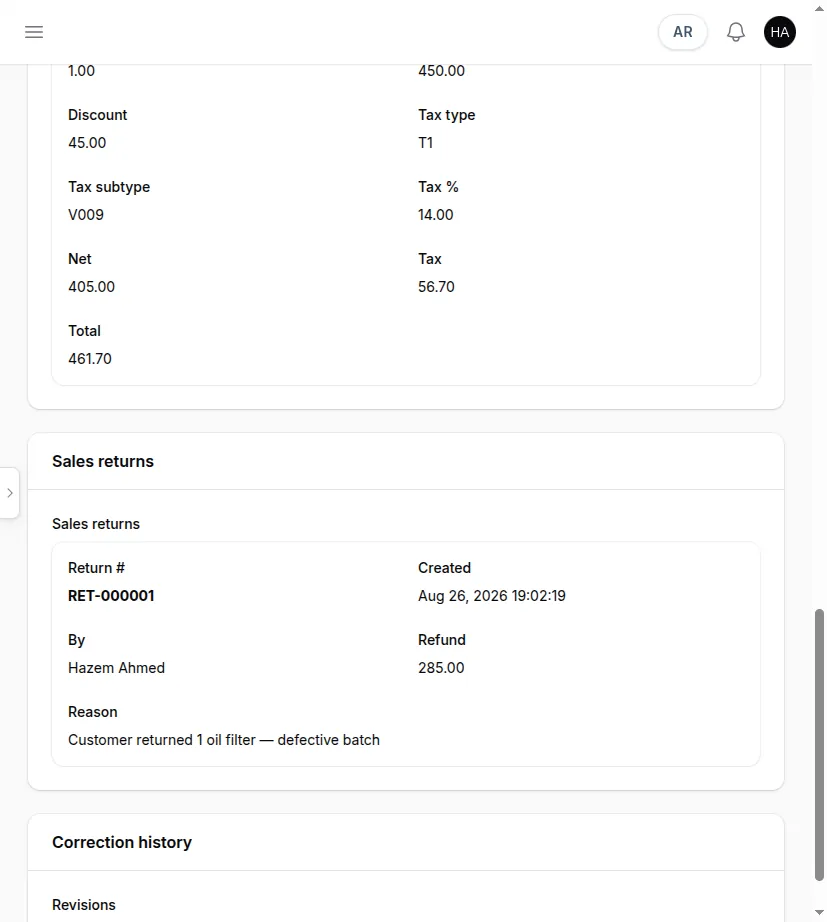
Related articles
Sales invoices
Create, print, correct, and optionally send Egyptian-pound invoices, with per-line discounts, an internal Number (INV-…) and a separate ETA number (ETA-…), plus local and ETA statuses.
Inventory records on invoices and ETA
Turn a product list into invoice lines that print locally and submit to the Egyptian Tax Authority.
Roles and permissions
Owner designs permission packs. Team assigns those packs to people.