Sales invoices
Create, print, correct, and optionally send Egyptian-pound invoices, with per-line discounts, an internal Number (INV-…) and a separate ETA number (ETA-…), plus local and ETA statuses.
-
Step 1
Open the Sales Invoices list
Sales → Sales Invoices lists every invoice with its local and ETA status. Columns include Number (INV-…) and ETA # when an ETA number exists. Create starts a new invoice.
Screenshots show the English workspace UI.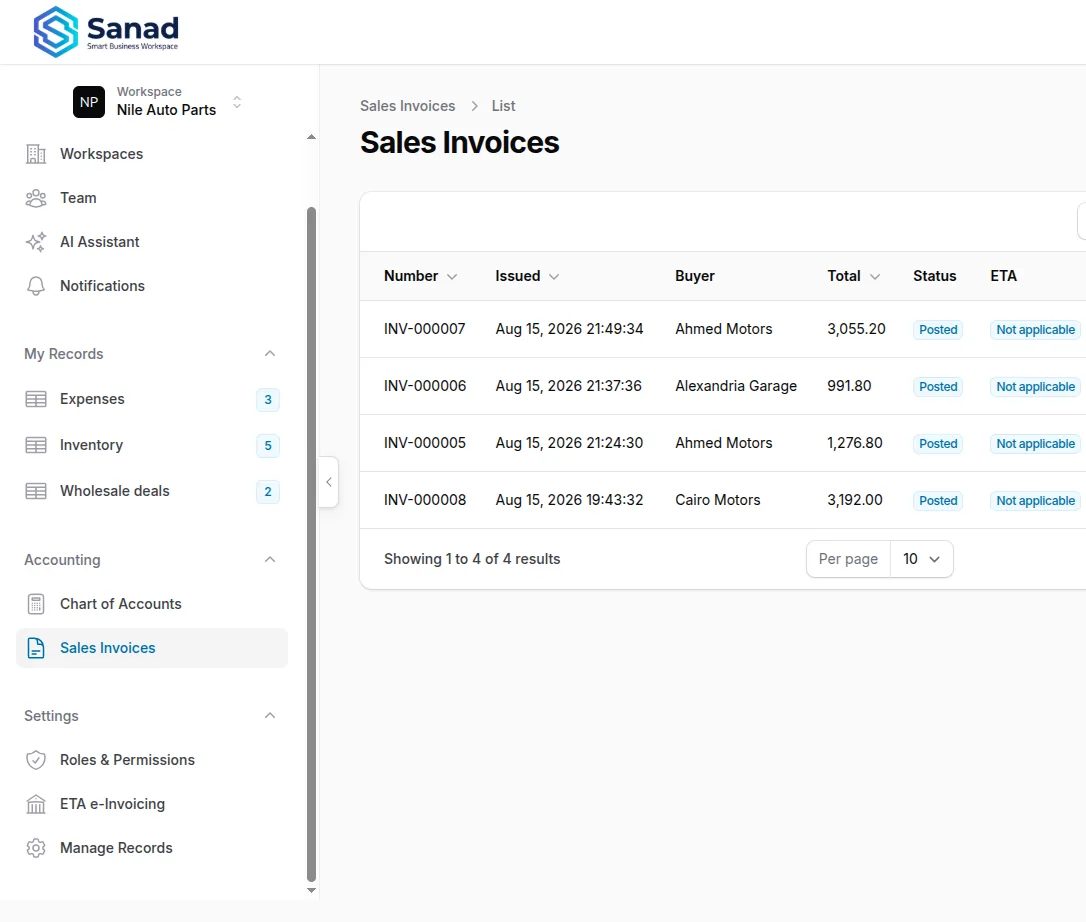
-
Step 2
Create an invoice
Buyer: Person, Business, or Foreign (Business and Foreign need a tax RIN). Payment: Cash, Bank transfer, Card, Cheque, Other. The invoice is numbered automatically, saved as draft, then finalized (posted) — you cannot create another in the same flow.
Screenshots show the English workspace UI.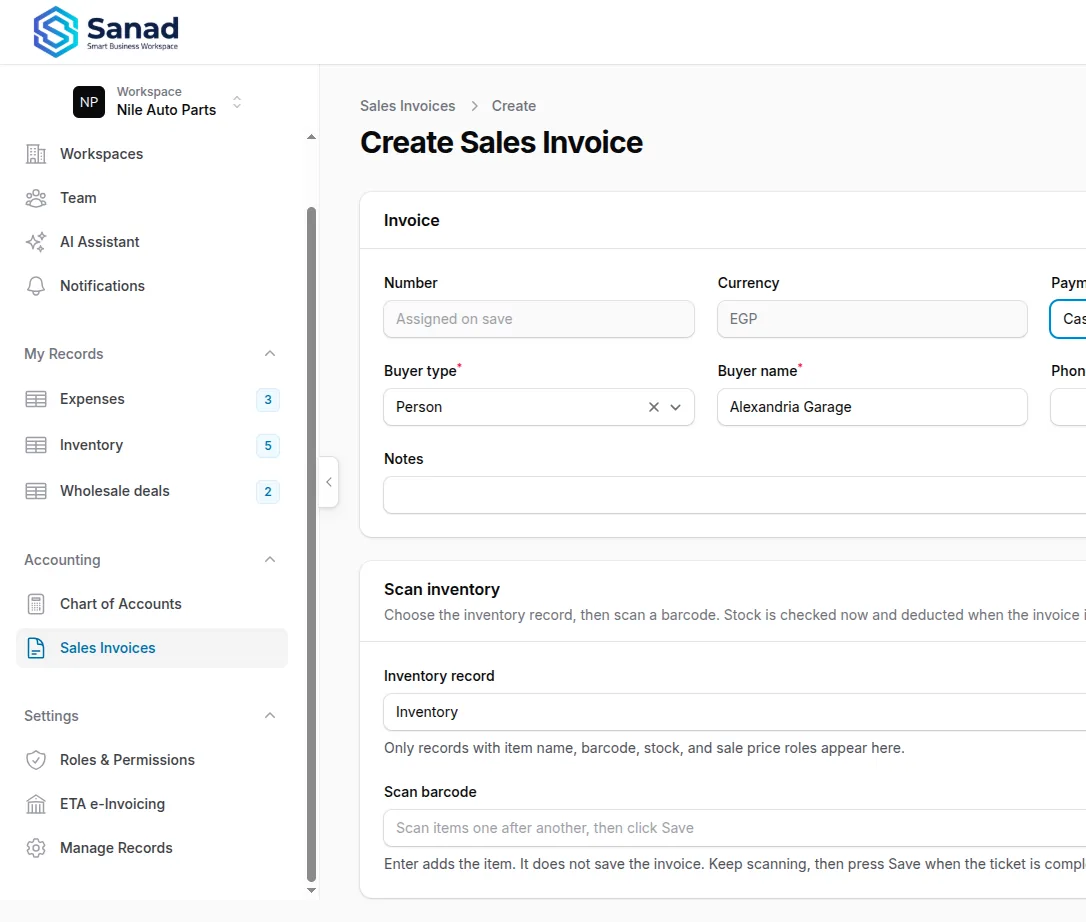
-
Step 3
Add lines
Add lines by hand (Add line) or scan inventory. Set Discount % or Discount on a single line, or use Invoice discount % above the lines to write one percentage onto every line at once — including scanned lines — so a later partial return still refunds each item at its discounted price. There is no separate footer-only discount. Net, tax, and total are calculated per line and for the whole invoice.
Screenshots show the English workspace UI.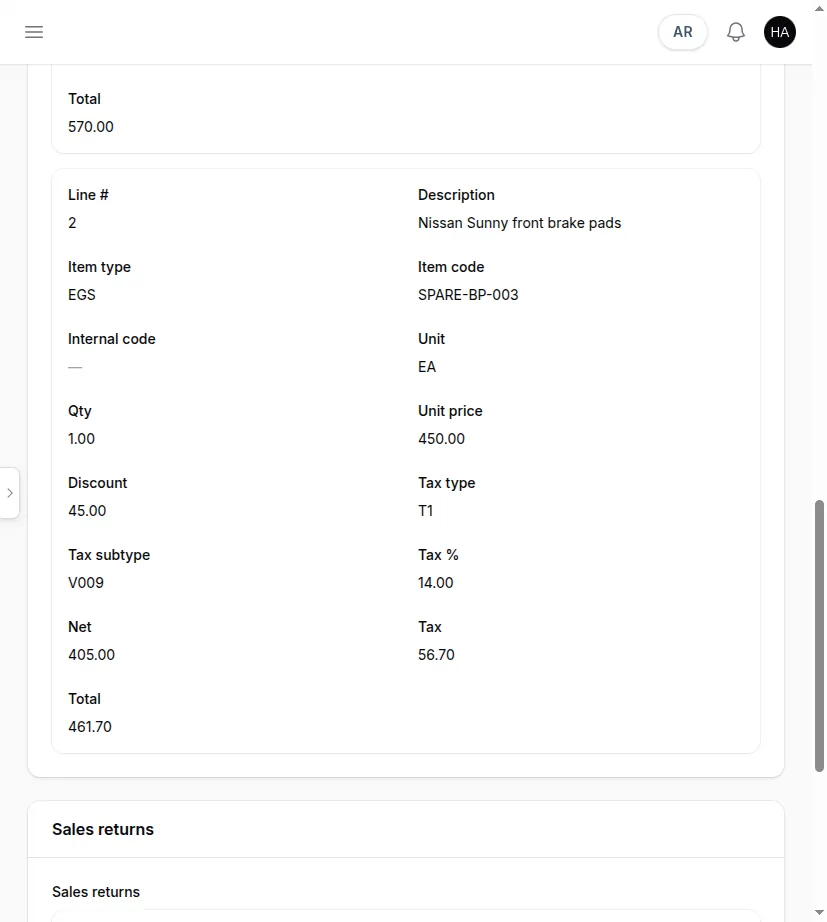
-
Step 4
Print, send, download PDF
Number (INV-…) is assigned when the invoice is posted. ETA number (ETA-…) is assigned when you send to the tax authority and appears on the invoice view. Print uses the business profile (name, logo, footer, prefix) and works anytime. Send now when the invoice is Ready for ETA. Download ETA PDF after the tax authority accepts and gives a UUID.
Screenshots show the English workspace UI.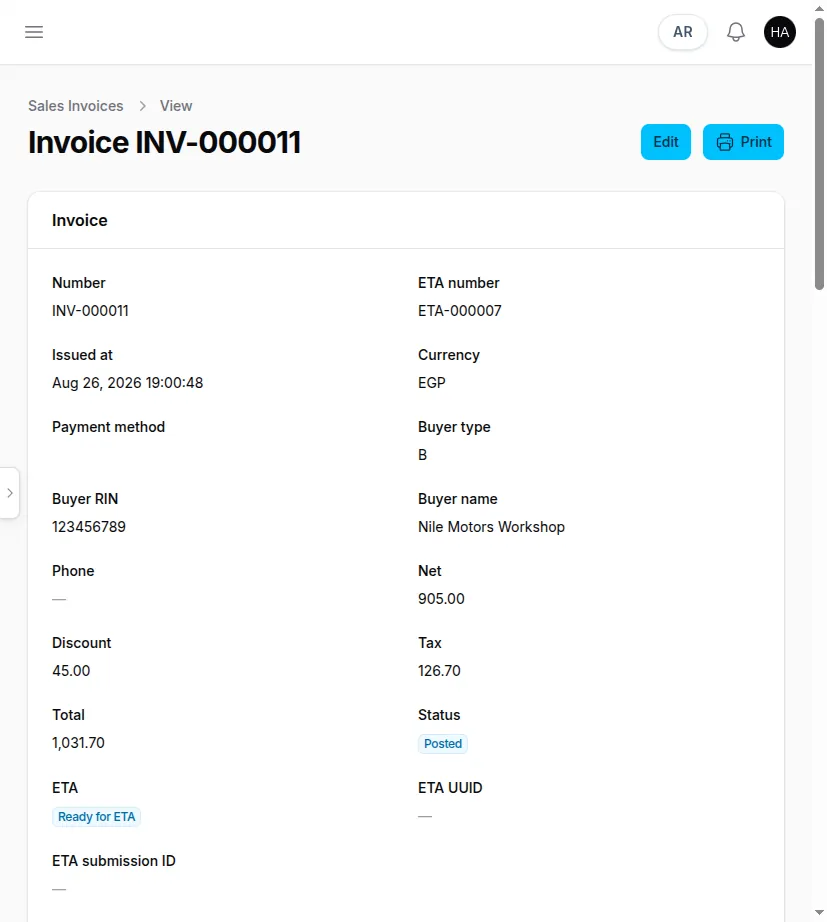
-
Step 5
Statuses, corrections, and delete
Local: Draft (editable, can delete), Posted, Cancelled. ETA: Not applicable, Ready for ETA, Sending, Submitted, Accepted, Rejected, Failed. Posted invoices can be edited with a Correction reason only while ETA is Not applicable, Ready for ETA, Rejected, or Failed — Sending, Submitted, and Accepted lock editing. History is kept. Delete only while still a draft, if your role allows it. Partial returns are separate documents — see Sales returns. The invoice view lists them under Sales returns.
Screenshots show the English workspace UI.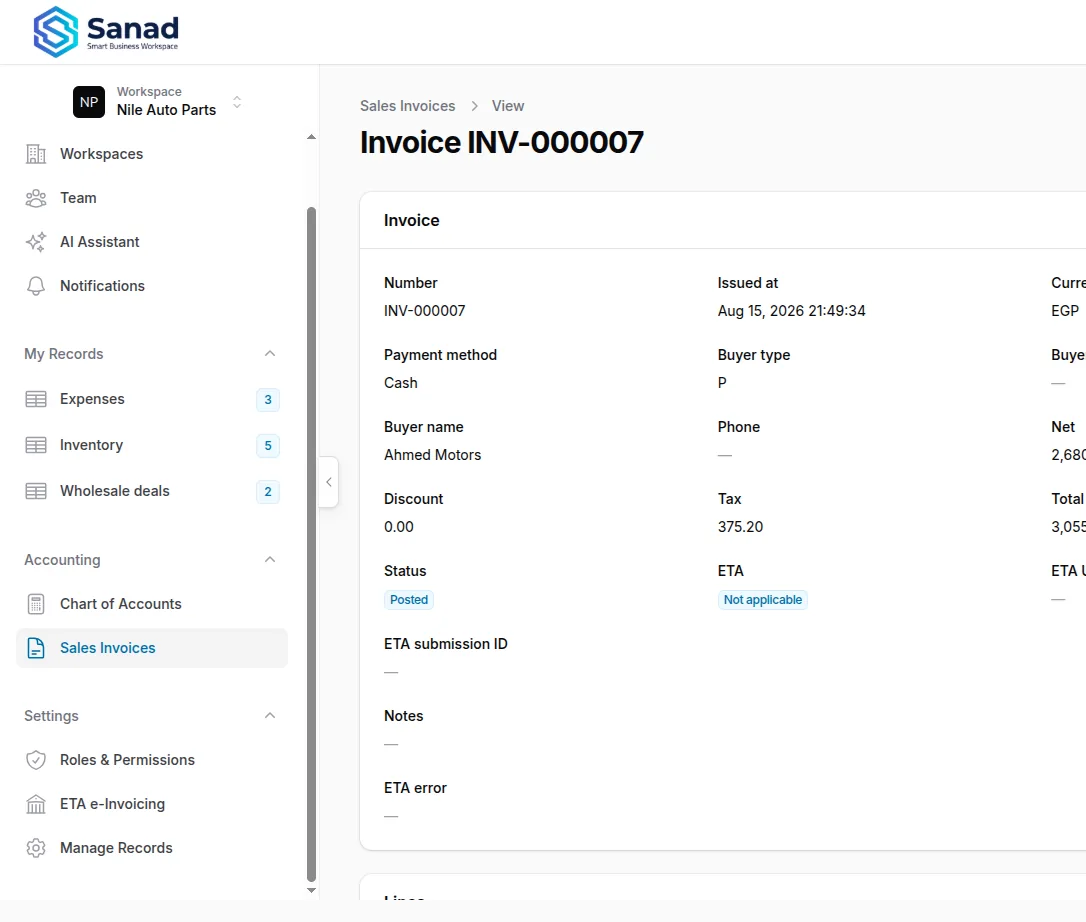
Related articles
Sales returns
Return part or all of a posted invoice: proportional refund, remaining qty tracking, and stock restore for scanned items.
Inventory records on invoices and ETA
Turn a product list into invoice lines that print locally and submit to the Egyptian Tax Authority.
ETA e-invoicing
Connect the workspace to the Egyptian Tax Authority and submit posted invoices.
Plans and billing
What each plan unlocks, how to request a change, and what Pending payment means.